> ## Documentation Index
> Fetch the complete documentation index at: https://docs.a7manager.se/llms.txt
> Use this file to discover all available pages before exploring further.
# Inspector app
> The separate offline-first app inspectors use in the field.
Field inspections are carried out on a separate app rather than the main web application,
because depots and sidings have unreliable connectivity. It is a progressive web app —
installed from the browser, works fully offline, and syncs when a connection returns.
Its default language is Swedish.
## The screens
```mermaid theme={null}
flowchart TD
A[Login
email, password, project] --> B[Reports
assigned to you]
B --> C[Inspection
checklist tree]
C --> D[New finding
severity, placement, photos]
D --> C
```
| Screen | Purpose |
| --------------- | -------------------------------------------------------------------------------- |
| **Login** | Email and password, then choose a project |
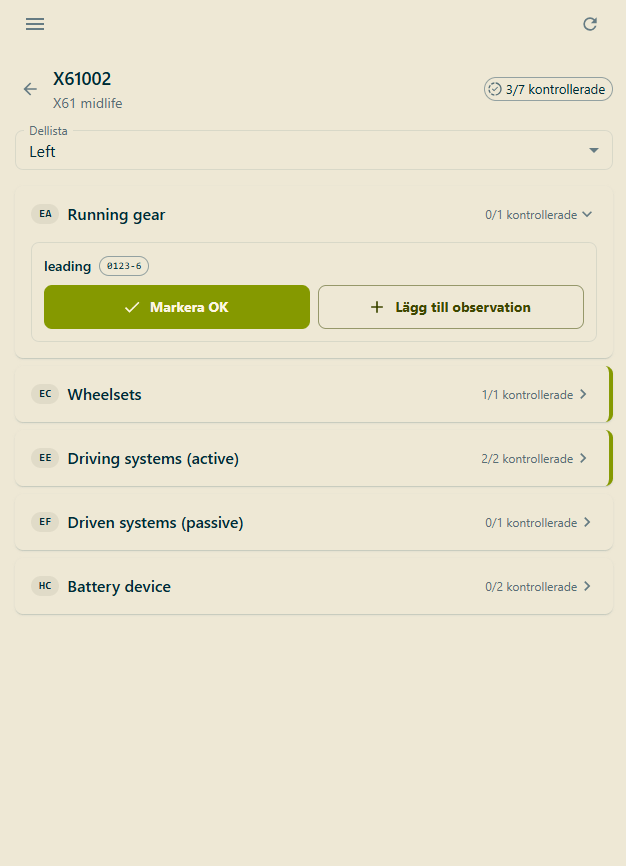
| **Reports** | The reports assigned to you. The default screen |
| **Inspection** | The checklist tree for one report. Each item can be marked OK or given a finding |
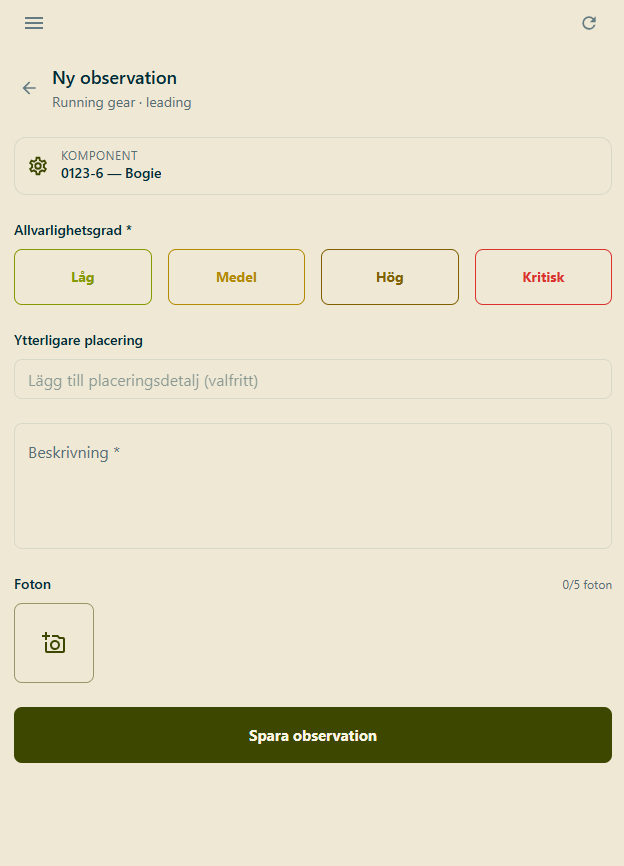
| **New finding** | Severity, placement, description and up to five photos |
 A drawer gives three further destinations:
| | |
| ------------ | ----------------------------------------------------------------------------- |
| **Reports** | Back to the list |
| **Sync** | Pending findings, photos and OK marks; last sync time; sync now and retry all |
| **Settings** | Active project, switch project, account, sign out |
## Working offline
Reference data — vehicles, templates and checklist items — is cached when you sign in and
refreshed periodically while online. Everything you record is stored on the device first and
queued for upload.
When connectivity returns the queue drains in order: **findings, then OK marks, then photos**.
Photos wait for their finding to arrive at the server first, so a partial sync never orphans
an image.
**Nothing is silently dropped.** A failed upload is retried rather than discarded, attempts
accumulate against the record, and the Sync screen surfaces anything that has retried too many
times so it can be dealt with.
Every finding and OK mark carries a device-generated identifier, which makes replaying a
queued upload safe — if the server already has that identifier it returns the existing record
instead of creating a duplicate.
## What you record
The app follows the exceptions-only model described on [Inspections](/pages/inspections):
* A **finding** is something wrong, with a severity of low, medium, high or critical.
* An **OK mark** says an item was checked and was fine.
No finding does not mean "fine" — it means "fine **or** not looked at yet", which is why the
OK mark exists. Both freeze the component that was in the slot at the time, so a later remount
never rewrites what was inspected.
## Submitting
Reports are submitted from the main web application, not from the app. Submission is terminal:
once submitted, a report is read-only and no further findings can be added.
A drawer gives three further destinations:
| | |
| ------------ | ----------------------------------------------------------------------------- |
| **Reports** | Back to the list |
| **Sync** | Pending findings, photos and OK marks; last sync time; sync now and retry all |
| **Settings** | Active project, switch project, account, sign out |
## Working offline
Reference data — vehicles, templates and checklist items — is cached when you sign in and
refreshed periodically while online. Everything you record is stored on the device first and
queued for upload.
When connectivity returns the queue drains in order: **findings, then OK marks, then photos**.
Photos wait for their finding to arrive at the server first, so a partial sync never orphans
an image.
**Nothing is silently dropped.** A failed upload is retried rather than discarded, attempts
accumulate against the record, and the Sync screen surfaces anything that has retried too many
times so it can be dealt with.
Every finding and OK mark carries a device-generated identifier, which makes replaying a
queued upload safe — if the server already has that identifier it returns the existing record
instead of creating a duplicate.
## What you record
The app follows the exceptions-only model described on [Inspections](/pages/inspections):
* A **finding** is something wrong, with a severity of low, medium, high or critical.
* An **OK mark** says an item was checked and was fine.
No finding does not mean "fine" — it means "fine **or** not looked at yet", which is why the
OK mark exists. Both freeze the component that was in the slot at the time, so a later remount
never rewrites what was inspected.
## Submitting
Reports are submitted from the main web application, not from the app. Submission is terminal:
once submitted, a report is read-only and no further findings can be added.